Lists and records
The lists your company keeps, one record per real thing, records inside records, details with their sources, actions and views.
Besides chats, your workspace keeps track of things: the work you do, the companies and people you do it with, and anything else your company tracks, like properties, products or invoices. Each thing has its own page, and every detail on it says where it came from.
A list is one kind of thing your company tracks: Clients, Jobs, Change orders, Listings, Invoices. A list owns:
- its name, and what one thing on it is called
- an icon or emoji
- its columns, what each record on it tracks (Client, Amount, Due date)
- its steps, some marked finished (Requested, Quoted, Approved, Rejected). Some lists, like Products, have none.
- its links to other lists, named both ways: a change order’s Job, and a job’s Change orders
- its actions, like Mark paid or Hire, beside the ones every list has
- what it is underneath: Work, Company, Person, Thing or Moment. These fixed shapes make dates, people and companies behave the same whatever you call them.
- the place it sits in, and who can see it
- what it’s part of, if each one sits inside something on another list, like a change order inside a job
- what Cruma does on its own, like “Start a job when a signed quote arrives”
You add lists by name, from a ready-made setup, by asking Cruma, or by accepting what Cruma noticed. See Set up what you track.
Records
Section titled “Records”A record is one real thing: Acme Ltd, 12 Oak St, INV-1043. It can be on one or more lists, and on each one it has its own step and dates, shown as a chip under the record’s name.
- Acme is a client and a supplier. One company record, on two lists. Its Client section has its account lead and step; its Supplier section has its terms.
- A freelancer is one person record, in Contacts and in Team. Their billing details sit under Contact.
- A candidate who’s hired keeps one record. Hire takes them off Candidates and adds them to Team, so the change is history, not a move, and the interviews stay where they were.
A finished record leaves the sidebar and the default views, and stays one filter away. Nothing is deleted.
A record’s page
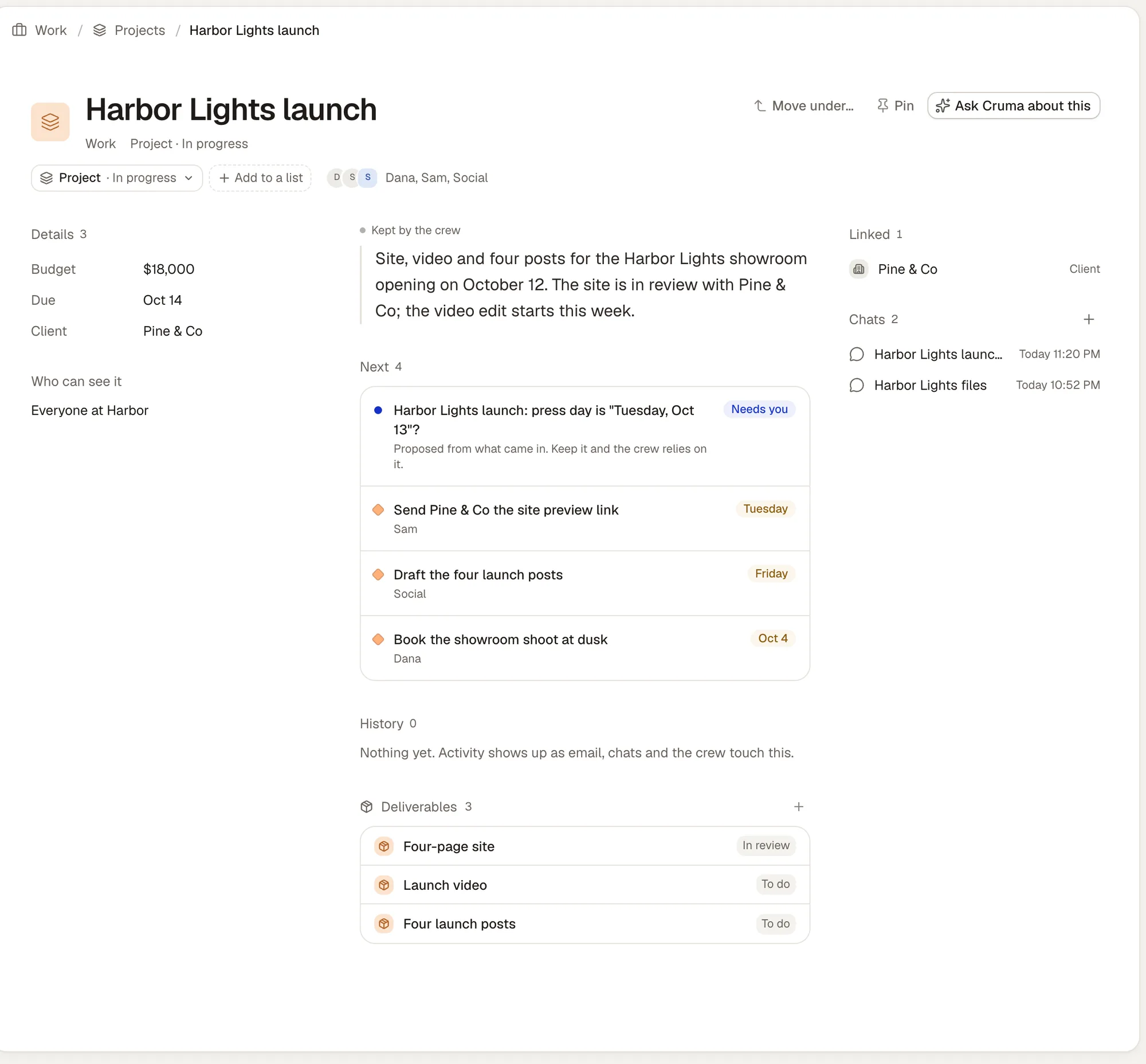
Section titled “A record’s page”A record’s page has everything about it on one screen:
- At the top: its name, what it is and where it sits, a chip for each list it’s on with its step, Add to a list, and who’s on it. Move under…, Pin and Ask Cruma about this sit on the right.
- Details, on the left: Budget, Due, Client and the rest of its list’s columns. Click a value to change it in place; an empty one says Add. Who can see it sits under them.
- In the middle: the crew’s short summary, then Next above History. Next holds what’s waiting on you about the record and the promises still open on it, each with who owes it and when it’s due. History is what happened on it: emails, chats and what the crew did. Under them, a section for each list whose records sit inside this one.
- On the right: Linked, the records it’s connected to, like its client, and Chats, every chat about it, with + to start one.
On a narrow screen the columns of the page stack in that order.
Moving a record to another step
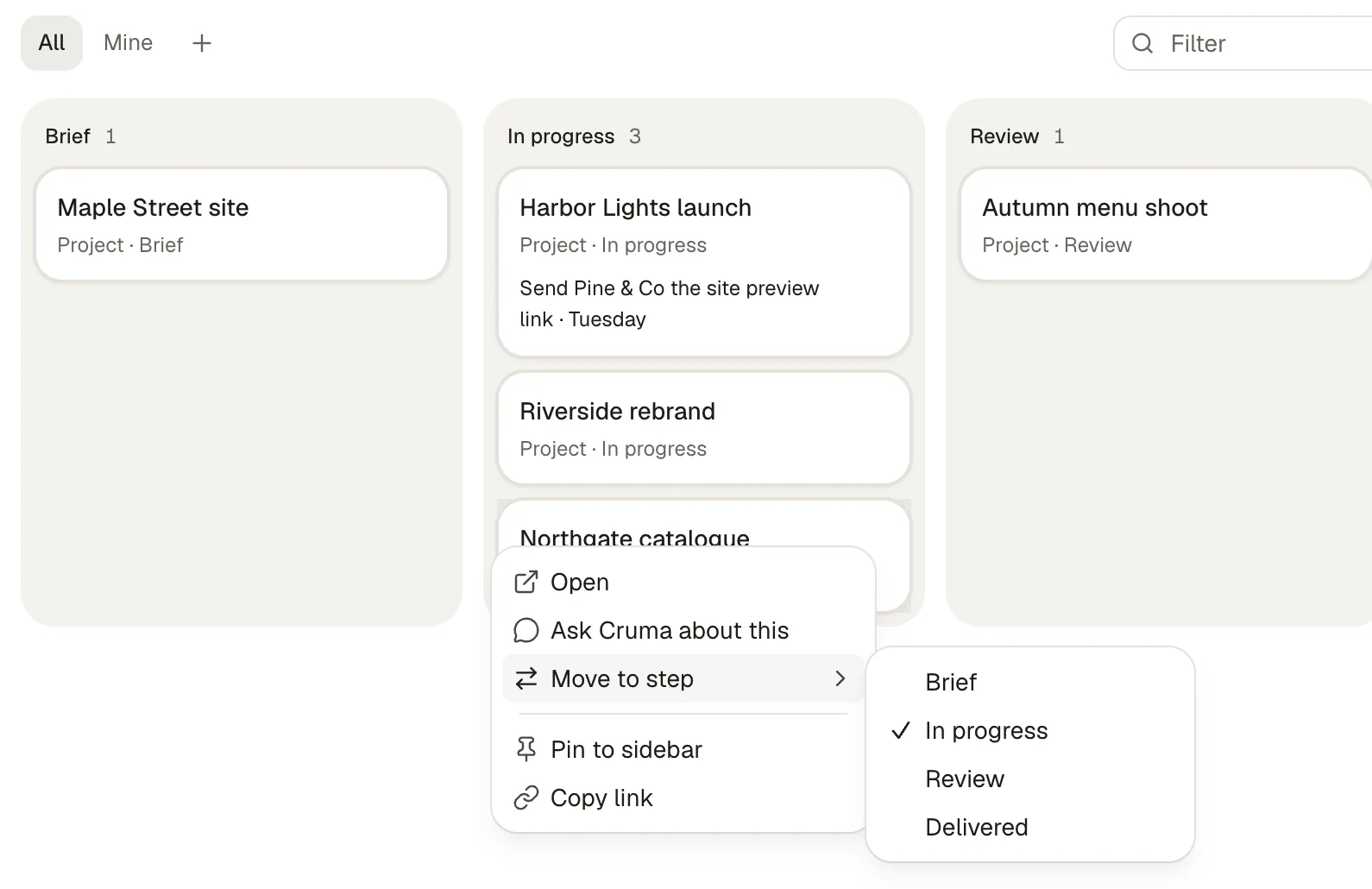
Section titled “Moving a record to another step”Click the list’s chip under the record’s name, like Deliverable · To do, and pick the step. Steps marked finished say so in the menu. The chip shows the new step at once. On a board, you can also drag a card to another step, or choose Move to step from its ⋯ menu.
A record on two lists
Section titled “A record on two lists”Add to a list, beside the chips, shows the other lists a record can also be on, under Also track it as. Pick one and the record gets a second chip with its own step. Northgate catalogue, for example, is a project and a retainer: moving its Project step to In progress leaves its Retainer step as it was.

To take a record off one of its lists, open that list’s chip and choose No longer a and the list’s word for one, like No longer a retainer. The record and what’s known about it stay.
Records inside records
Section titled “Records inside records”A list can be part of another list: a deliverable is part of a project, a shot is part of a deliverable, a change order part of a job. You set this in the list’s Part of field. Then:
- The parent’s page has a section for each list inside it, like Shots on a deliverable, with how many there are and + to add one. Type a name and press Enter; the new record sits inside this one.
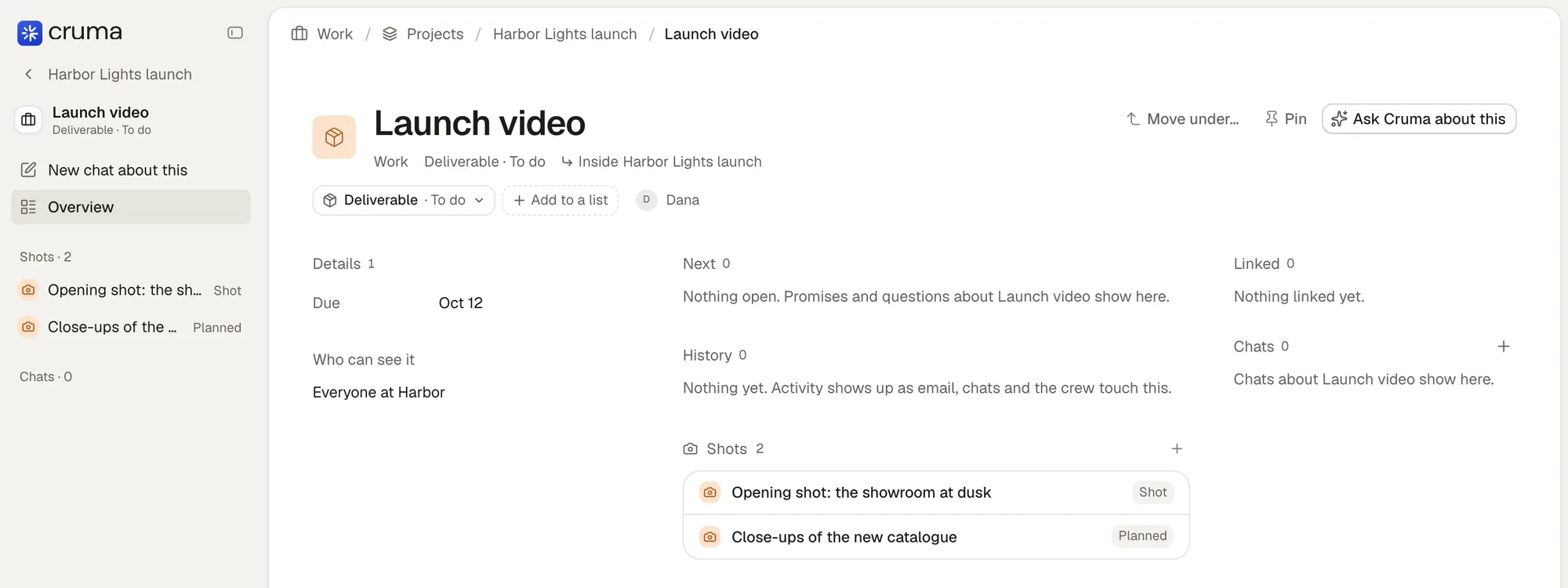
- Breadcrumbs follow the chain, as deep as the work goes: Work / Projects / Harbor Lights launch / Launch video. The record’s line says where it sits: “Inside Harbor Lights launch”.
- The sidebar follows too. On a record inside another, the row at the top, marked ‹ and named for its parent, takes you back up. Under it are the records inside this one, and its chats.
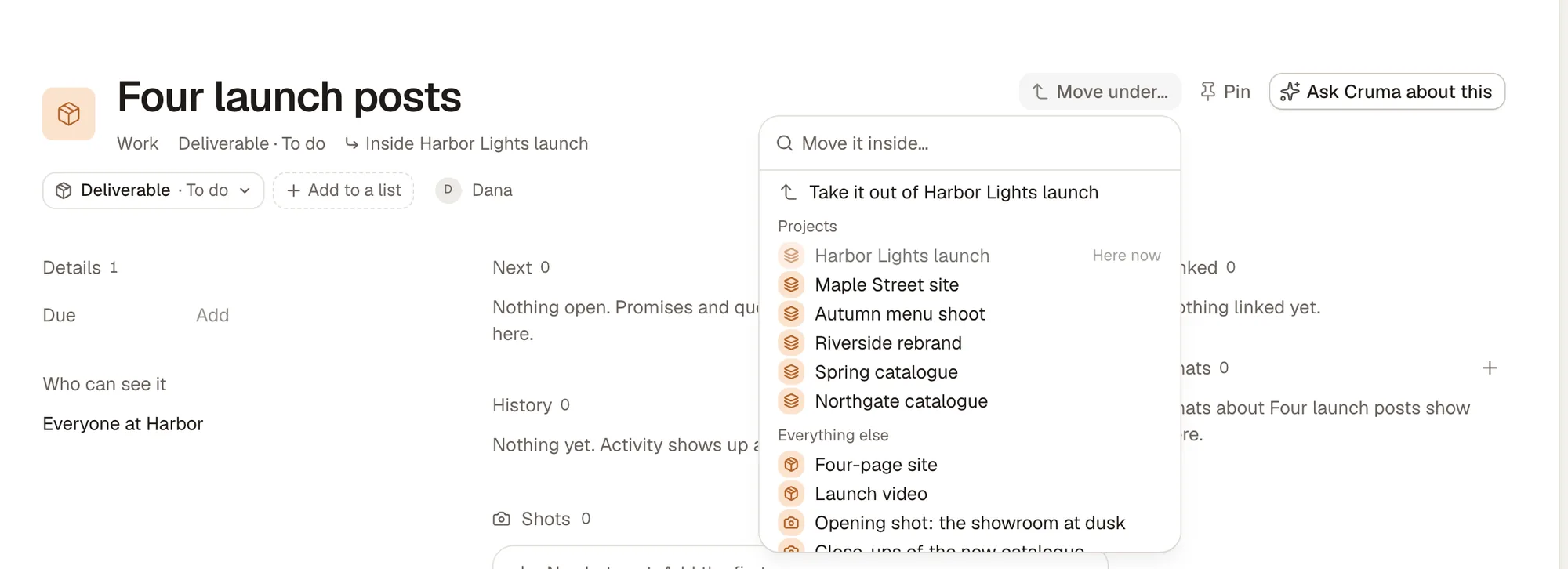
Move under… on a record moves it inside another. Search or pick from the menu; the one it’s in now says Here now, and Take it out of puts it back on its own. The breadcrumbs follow at once.
A record has one home for its breadcrumbs, and can still be linked to other records.
Details, with their sources
Section titled “Details, with their sources”What your workspace knows about a record is kept as details: a value in each of its columns, and anything else the crew learned. A link is a detail that points to another record. Each detail has:
- its source: the email, file, chat or person it came from
- as of: when it was true and when it was last confirmed
- its confidence: how sure the crew is
A detail the crew proposes shows dashed until someone keeps it. When two sources disagree, both are kept, the newer one shows, and the clash asks you on Home. Corrections never overwrite: the old detail stays in the history. Where this comes from shows, app by app, where a record’s details came from.
Changing a list never loses what’s known. Removing a column hides it, and renaming it changes only its label.
A page opens with a short summary the crew keeps current, and shows what changed since you last looked.
Actions
Section titled “Actions”Every change to a record is a named action, with who may take it and whether it asks first. Every list has the common ones: set a detail, move to a step, link, add to a list, merge. A list can add its own, like Mark paid on Invoices or Hire on Candidates.
People, the crew, kept tools and connected agents all use the same actions, with the same rules. See What the crew may do.
A place and its views
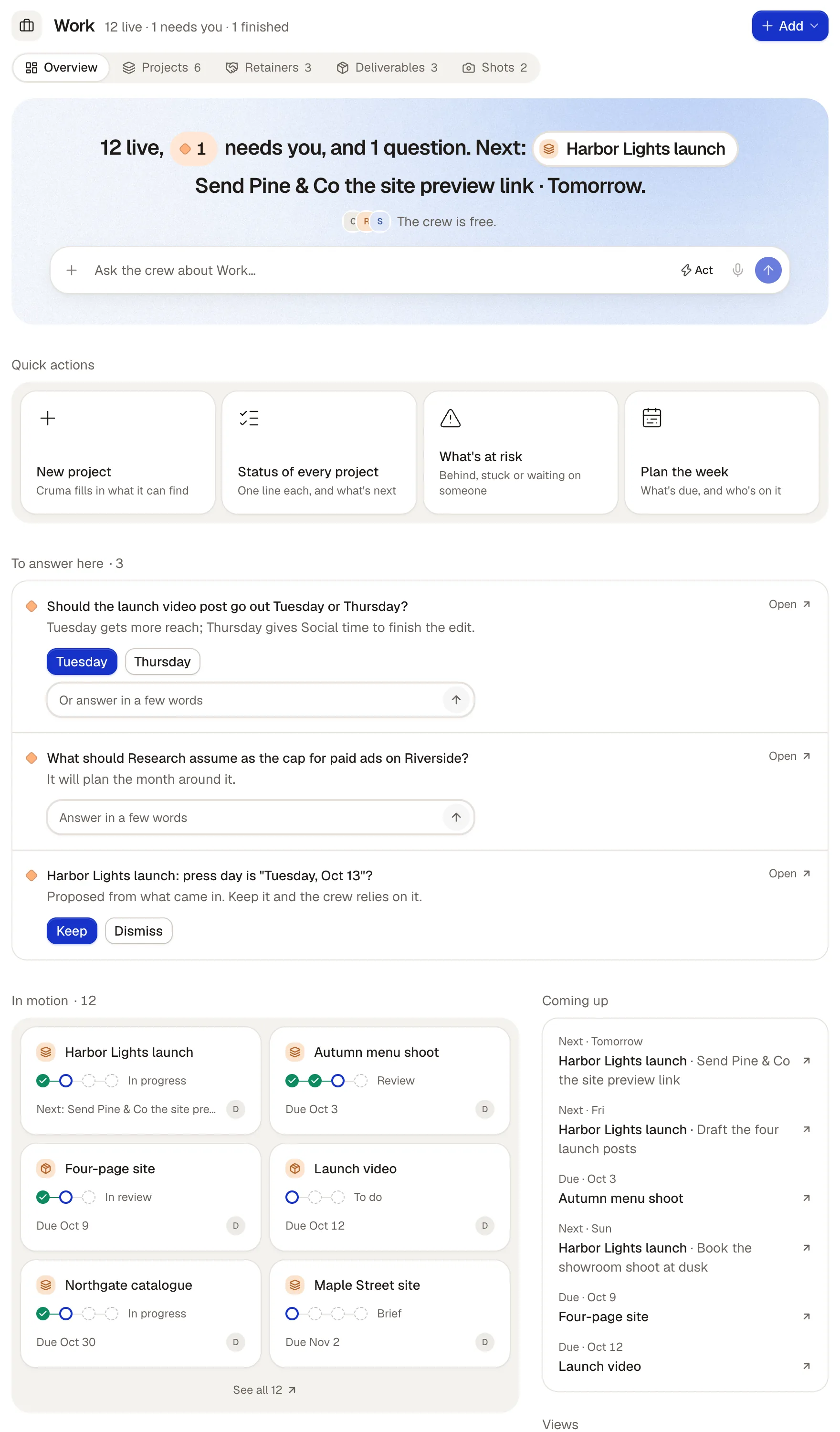
Section titled “A place and its views”Click a place in the sidebar, like Work, and it opens on its Overview. Every place has the same header: the place’s name with how many records are live, how many need you and how many are finished (each record counted once, whatever lists it’s on), Add to add a record to any of its lists, and a tab for Overview and one for each list in the place. The sidebar shows the same lists with Add a list under them, and the place’s views under Views. A + on the Views heading makes a new view; it shows when you point at the section, and it’s always there on a touch screen.
The Overview is the place’s home page, and it works like Home:
- A band at the top with one sentence about the place, like “12 live, 1 needs you, and 1 question. Next: Harbor Lights launch, Send Pine & Co the site preview link · Tomorrow.” Its numbers are the same as the header’s, and Next is the soonest open promise. Under it, a line on what the crew is working on, and a box to ask the crew about the place.
- Quick actions, in the place’s own words: add a record to its first list, get a one-line status of each, see what’s at risk, or plan the week.
- To answer here: questions and checks waiting on you in this place, each with its answers as buttons, so you answer without leaving the page.
- In motion: a card for each live record, with its step, its next date and who owns it. A promise shows as Next, like “Next: Send Pine & Co the site preview link · Tomorrow”; a record’s own date shows by its column’s name, like “Due Oct 9”.
- This week here: what changed on each record in the last seven days.
- Coming up: the next two weeks of dates, and anything overdue, each marked Next for a promise or Due for the record’s own date.
- The place’s saved views.
Team and the Library open on their own first tab instead.
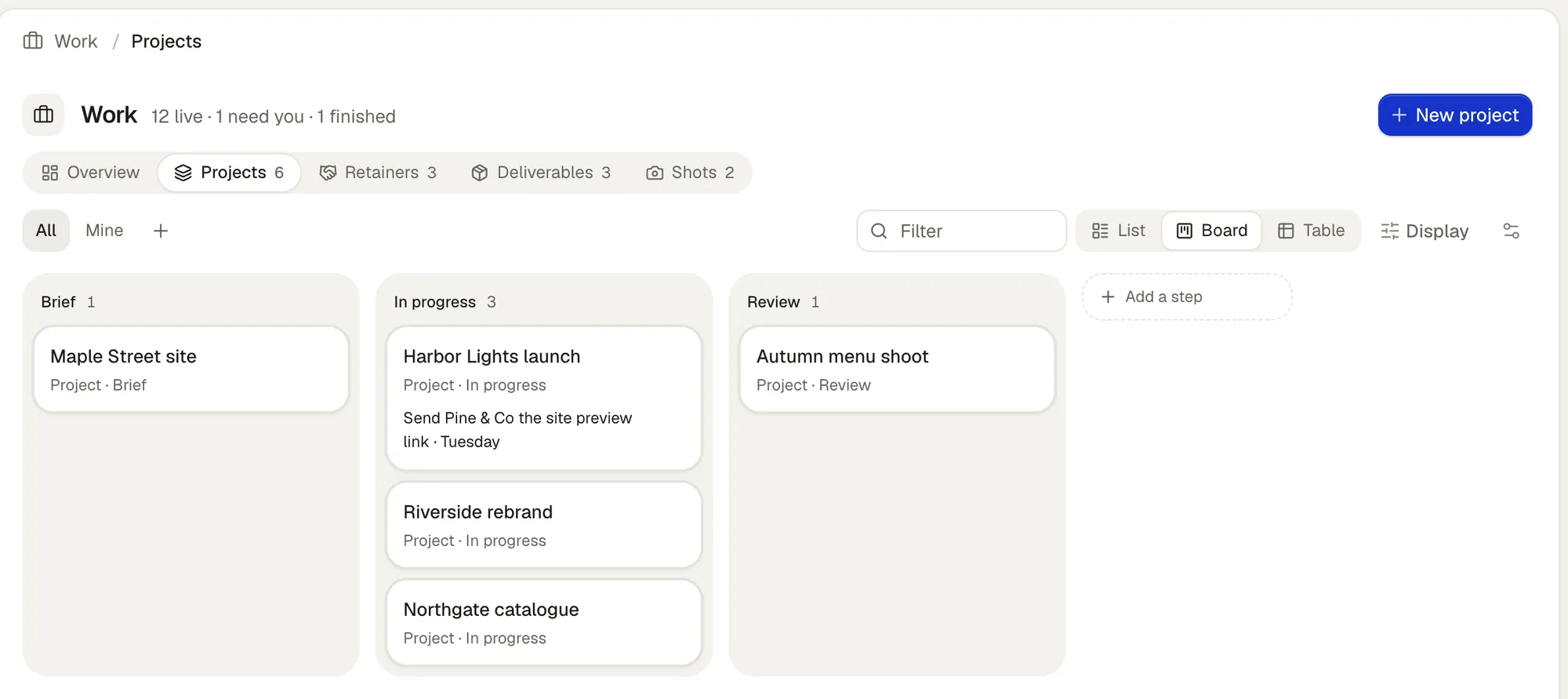
Each list shows its records as a List, a Board or a Table:
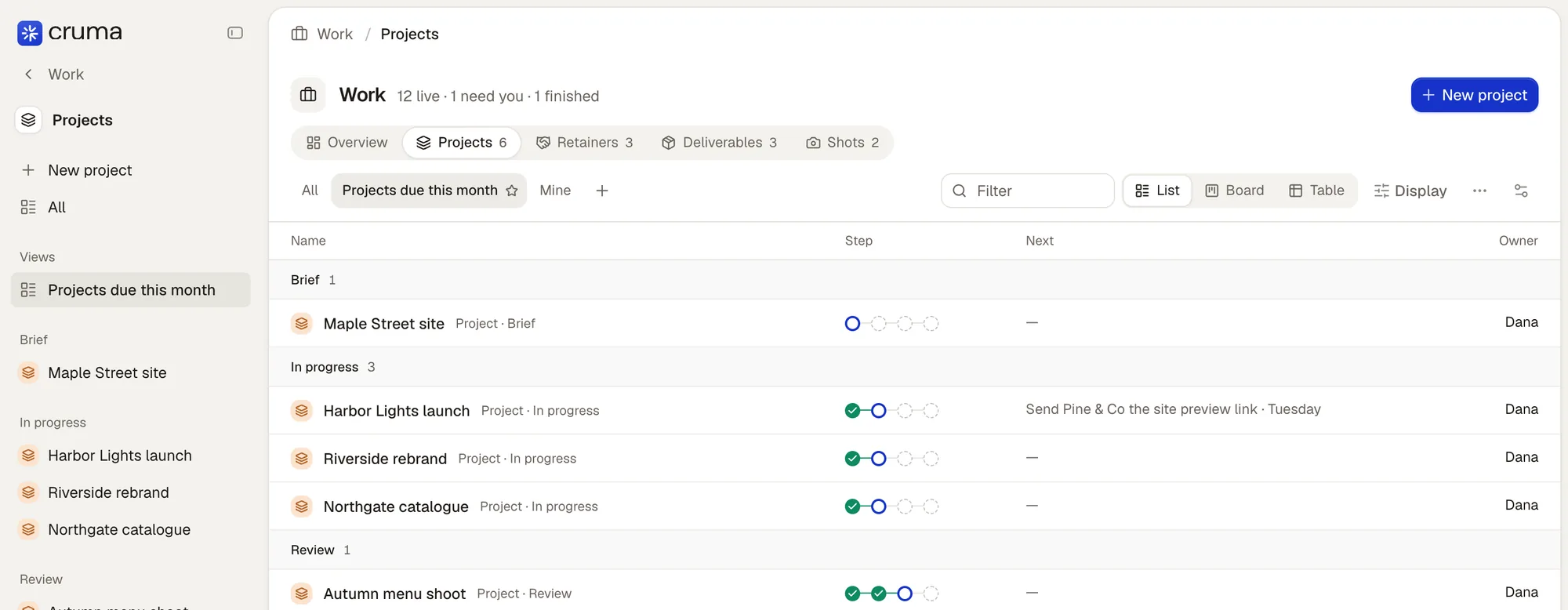
- List groups the records by step, with each record’s step bar, what’s next and its owner.
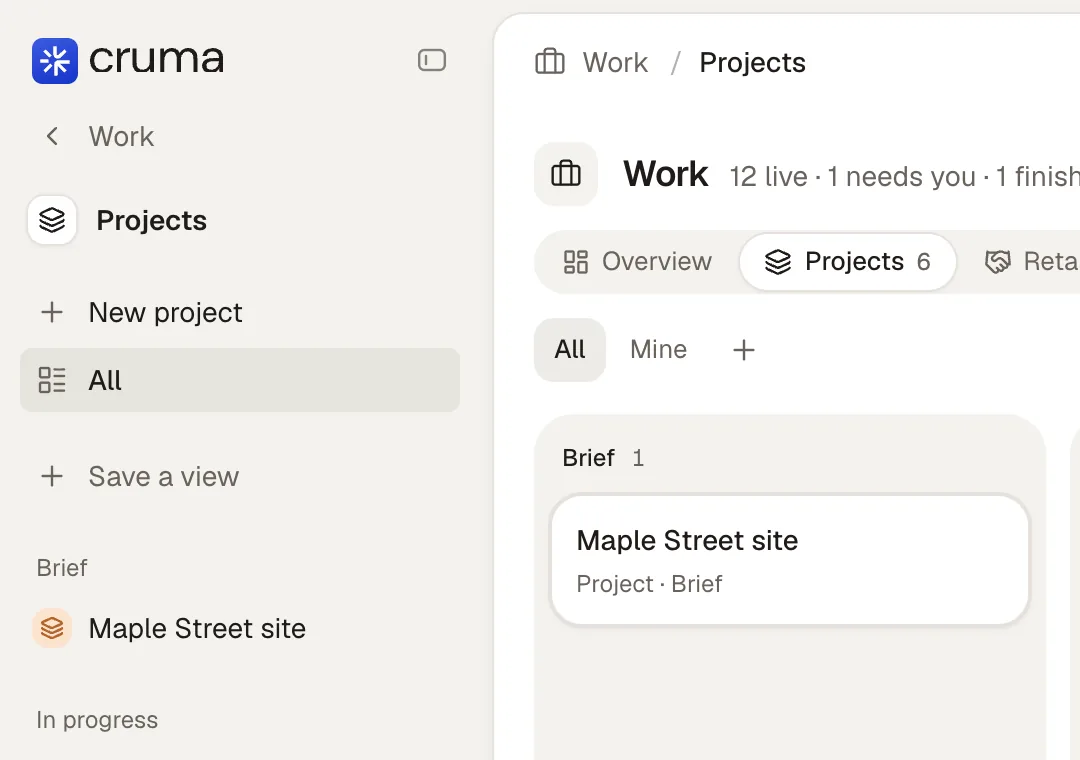
- Board lays the steps side by side, with a card per record under its step. Drag a card to another step to move it, or right-click it, or use its ⋯ menu, and choose Move to step. If a move isn’t allowed, the card goes back and says why.
- Table has a column for each of the list’s columns, like Budget, Due and Client.
Changing steps from the board
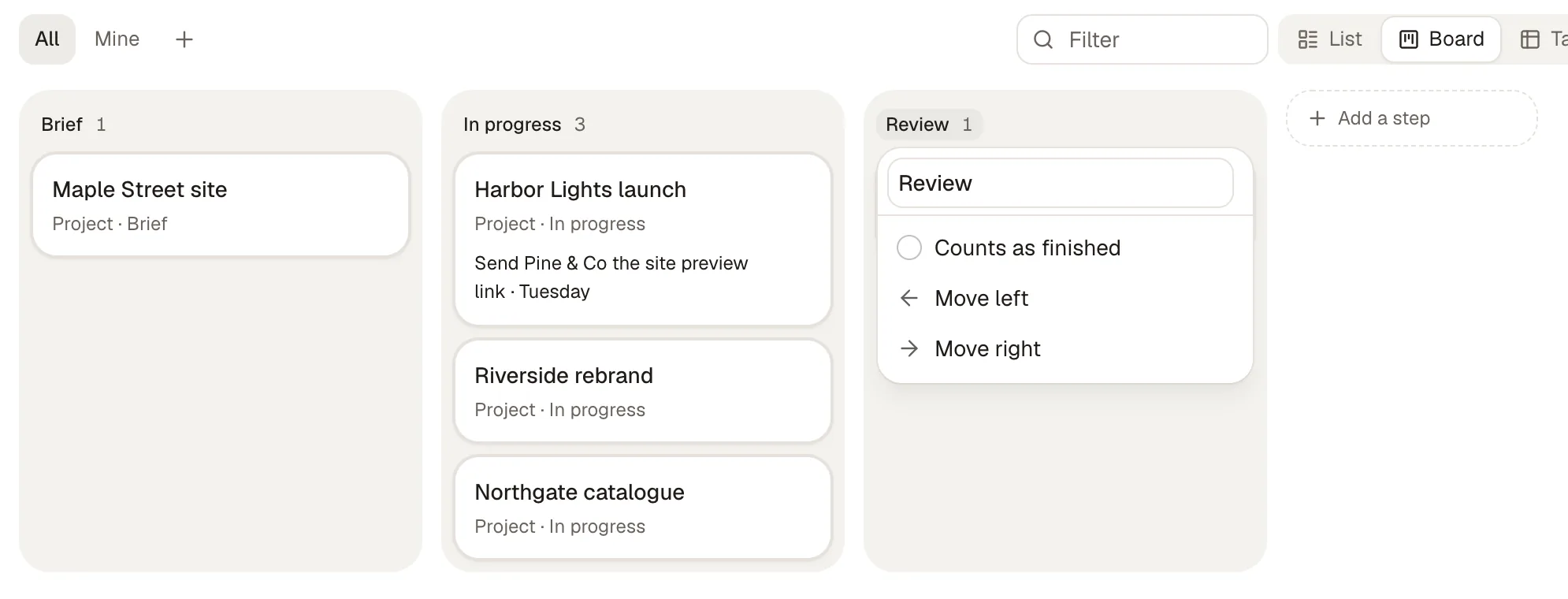
Section titled “Changing steps from the board”A board’s steps are the list’s steps, so you change them where you see them:
- Click a step’s name at the top of the board to open its menu: type over the name to rename it, turn on Counts as finished, or choose Move left or Move right.
- + Add a step, after the last step, adds one. Name it, like Waiting on client, and choose Add step. It goes at the end; move it from its menu.
Owners change the list this way, and it saves as they go. Anyone else sees the step names only.
Adding a column from the table
Section titled “Adding a column from the table”A table’s columns are the list’s columns, so you change them where you see them too.
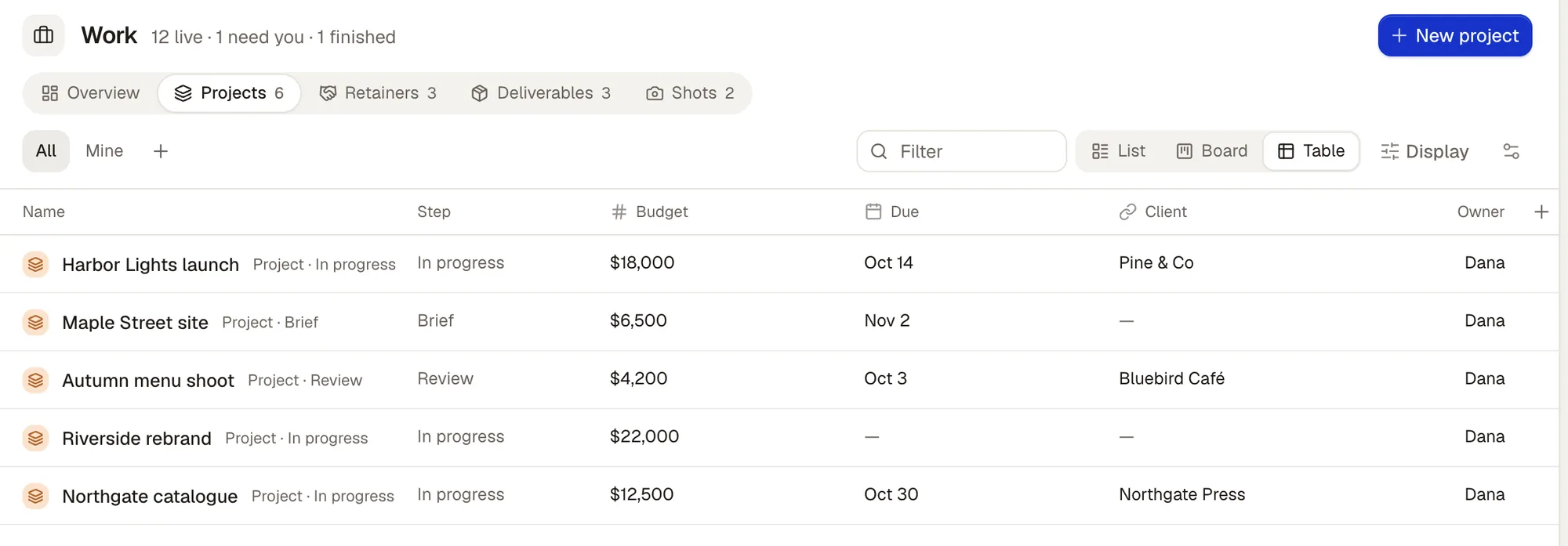
- + at the end of the header adds a column. Name it, pick its kind (Text, Number or money, Date, Link to a record or Choice) and choose Add column. Every record on the list gets it.
- Click a column’s name to rename it, change its kind, hide it from this view, move it left or right, or delete it.
Owners change the list this way, and it saves as they go. Anyone else can hide a column from the view they’re looking at.
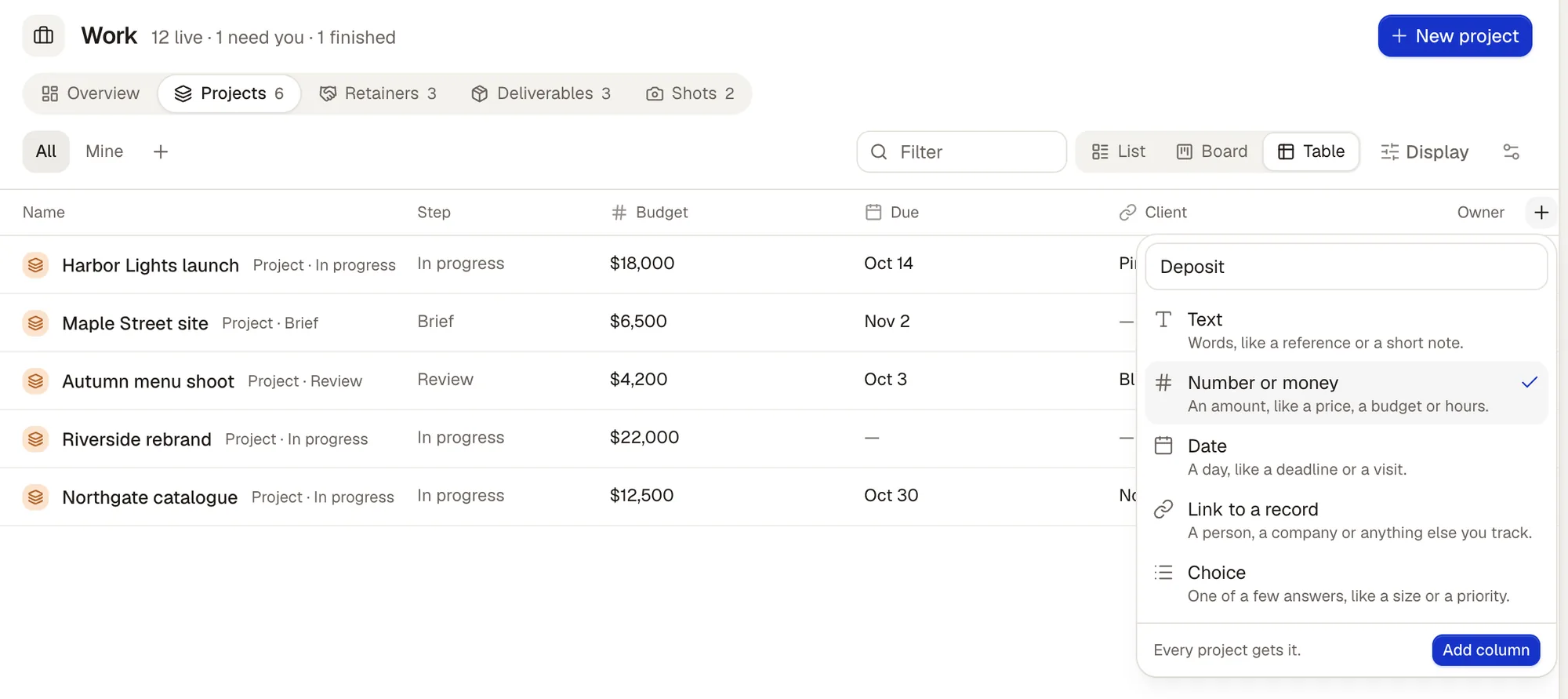
Edit list, the last button at the top right of a list’s tab, opens the list in the editor. See Set up what you track.
Views and tools
Section titled “Views and tools”A view decides only how records are shown. A list’s views sit as tabs above its records:
- All: every live record on the list.
- Your saved views, each by its name.
- Mine: the records you own.
- + at the end saves a new view. Say what you want to see, like “Projects due this month”, or choose Save what’s showing to keep the layout and filters you have now.
The star on a saved view’s tab keeps it in the place’s sidebar under Views.
A view you save is yours alone. Share with everyone, in its menu, puts it in everyone’s tabs.
Until a list has a saved view, its sidebar shows a Save a view row where its views would be. It does the same as +.
Display sets its name, layout (list, board, calendar or table), grouping, whether it shows only what needs you, and whether it shows finished records.
- All work and Needs you read across every list. All work shows everything in the place together, whatever list it’s on.
- Changes to a list’s default view are just yours until you save them as a view with +.
- A new view is yours until you choose Share with everyone.
- The + on the sidebar’s Views heading, or the + beside a list’s views, asks what you want to see, like “Jobs that need me, on a board”, and builds it for you to confirm.
- From a view’s ⋯ you can also add it to the sidebar or take it out.
When a view can’t do it, such as totals of change orders against each job’s contract value, the crew builds a tool. A tool you keep becomes a tab beside the views of the list it works on. See Tools.
Adding records
Section titled “Adding records”The button at the top right of a place adds a record: Add work on the All tab, or the list’s own, like New project. Type a name, or paste an email, link or file. Cruma fills in what it already knows and shows each detail, with Not found yet where it has nothing. Details Cruma filled in are dashed and marked with where they came from until someone confirms them. It flags a record you already have, so a new role goes on the same record.
The window says which step the new record starts at, like Starts at Brief. Choose Add project (or your list’s word) and the new record opens, with a section for each list that can sit inside it.
Promises
Section titled “Promises”Promises made on a piece of work become to-dos: yours under To do in your Inbox, and ones people owe you under Waiting. You never type a to-do in; it comes from the promise.
Finding anything
Section titled “Finding anything”Press ⌘K to jump to any record, crew member or chat by name, or to run an action. It understands your words and the generic ones, so “jobs” and “projects” both work. Search only finds what you may see: something said in a chat turns up only if you can see that chat. See Who sees what.
Talking about one thing
Section titled “Talking about one thing”On any page, Ask Cruma about this starts a chat linked to it. A page’s Chats tab lists every chat about it.