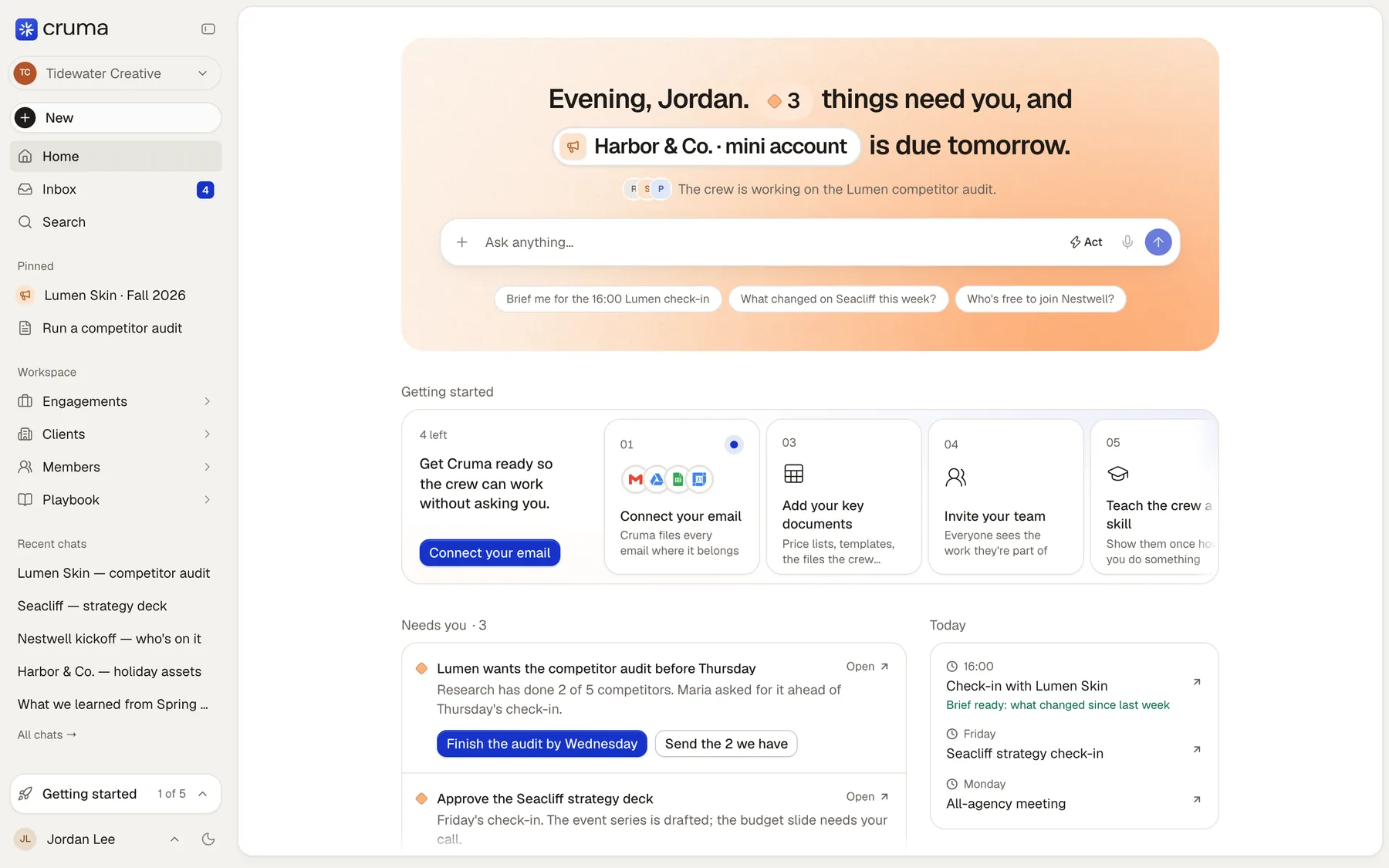
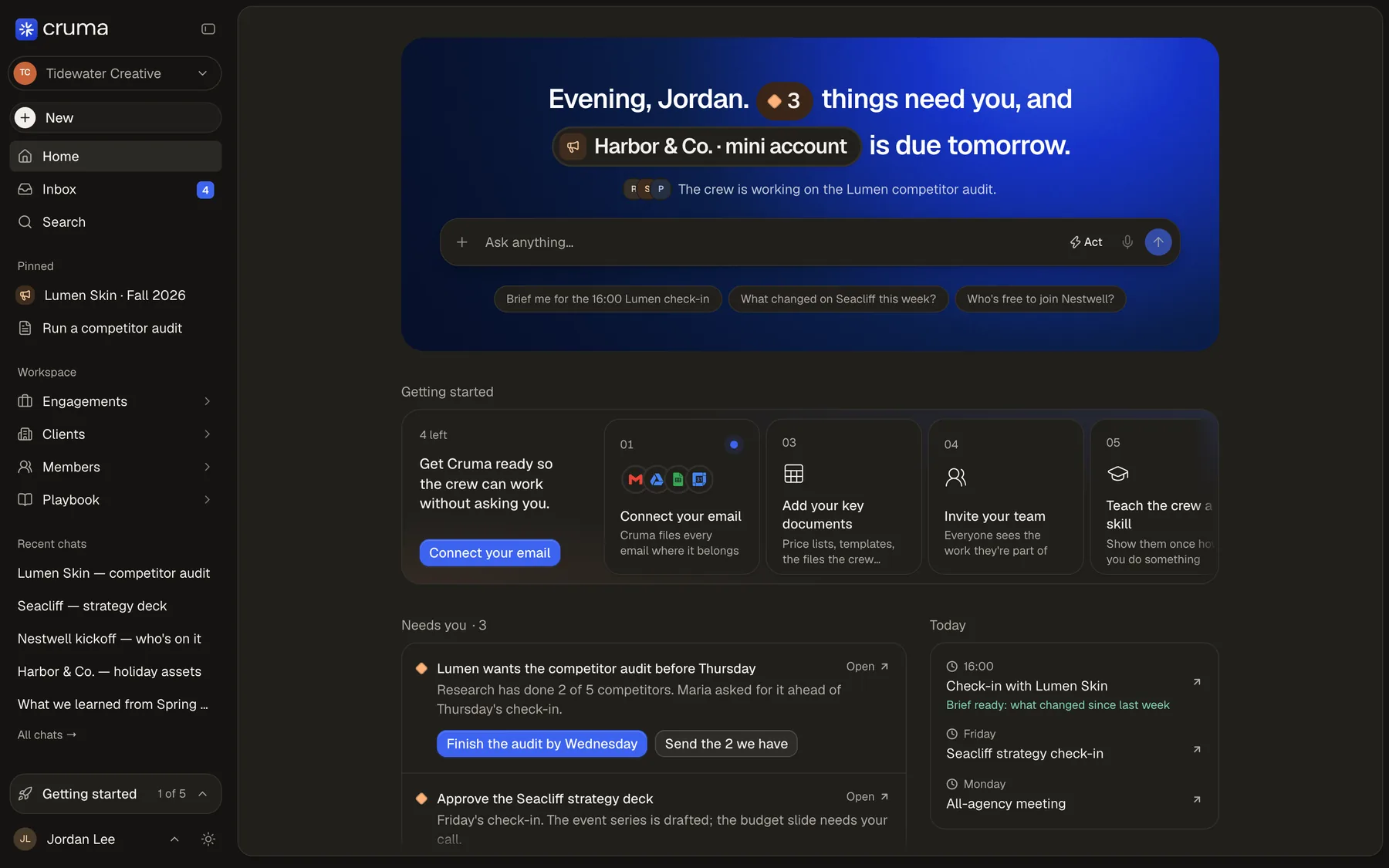
A new workspace takes a few minutes to set up. Home walks you through it with Getting started: “Get Cruma ready so the crew can work without asking you.”
-
Sign in. Enter your email and Cruma sends you a sign-in link. You can use a password instead, or continue with Google or Microsoft. You stay signed in on that device for 30 days from when you last used Cruma.
-
Name your workspace. Cruma asks what your company is called. Your workspace takes that name and your browser’s time zone.
-
Connect your email. Cruma files every email where it belongs. From your email and files, it proposes your setup on one screen: your places, the types of things you track with their details and stages, and your first crew. You confirm it or correct it in plain words. See Connect your apps.
-
Meet your crew. A new workspace starts with Cruma, who leads. Add Research, Social and others from templates in Settings → Crew → Add crew member, or hire more by describing what you need. See Hire a crew member.
-
Add your key documents. Price lists, templates, the files the crew should know. They go in the Library.
-
Invite your team. Everyone sees the work they’re part of. Invite people by email, as a member, an owner or a guest.
-
Teach the crew a skill. Show them once how you do something. See Teach a skill.
Each step ticks itself when it’s true in your workspace, and the sidebar shows how many are done, such as “1 of 5”. When setup is done, Getting started gives way to Quick actions.
Then ask
Section titled “Then ask”Type in the box on Home: “Brief me for the 16:00 check-in,” or “What changed on this job this week?” Cruma opens a chat, brings in the crew members who can help, and answers with its sources. See Chats.