Invite your team
Invite people to your workspace, see who hasn't joined yet, and take an invitation back.
Everyone in your workspace sees the work they’re part of. Owners invite people from the People section of the Workspace page.
Invite someone
Section titled “Invite someone”-
Open Workspace → People. Click your workspace’s name at the top of the sidebar, then People.
-
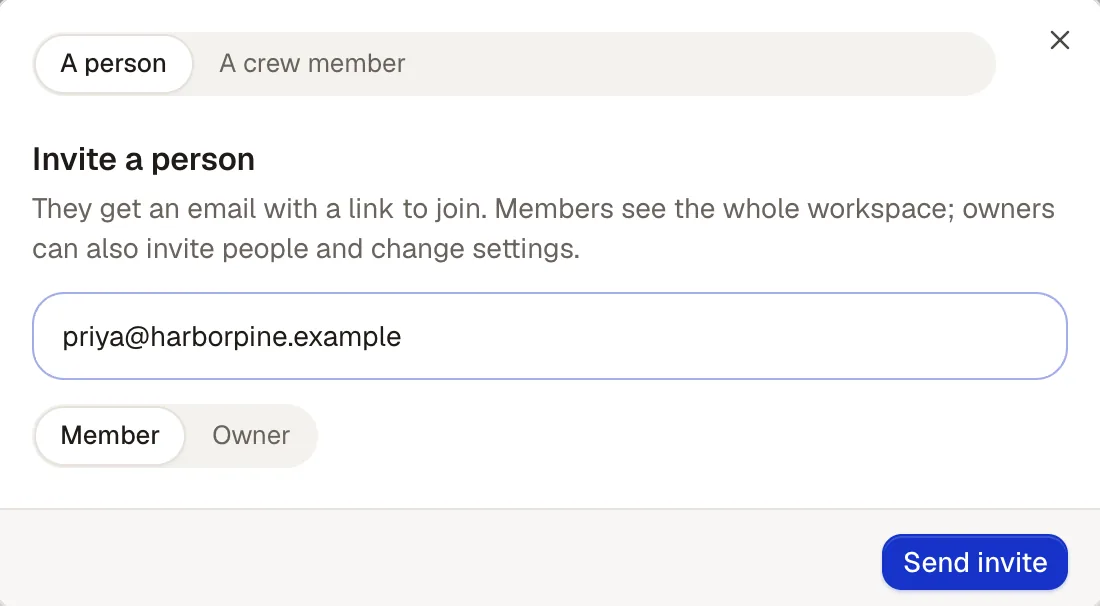
Type their email in the box and choose Invite.
-
Choose their role: Member or Owner. “They get an email with a link to join. Members see the whole workspace; owners can also invite people and change settings.”
-
Choose Send invite. They get an email with a link to join.
You can also invite from the workspace menu with Invite teammates, from Add to team in the Team place, or with Invite a person to the workspace in a chat’s list of who’s in it. For what members, owners and guests can do, see Roles.
Share an invite link
Section titled “Share an invite link”Copy invite link, beside Invite, copies a link to join the workspace, to share with your team however you like.
Who hasn’t joined yet
Section titled “Who hasn’t joined yet”Everyone in the workspace is listed under the invite box, with their role. An invitation that hasn’t been accepted waits under Invited, not joined yet, with its role, who invited them and when.
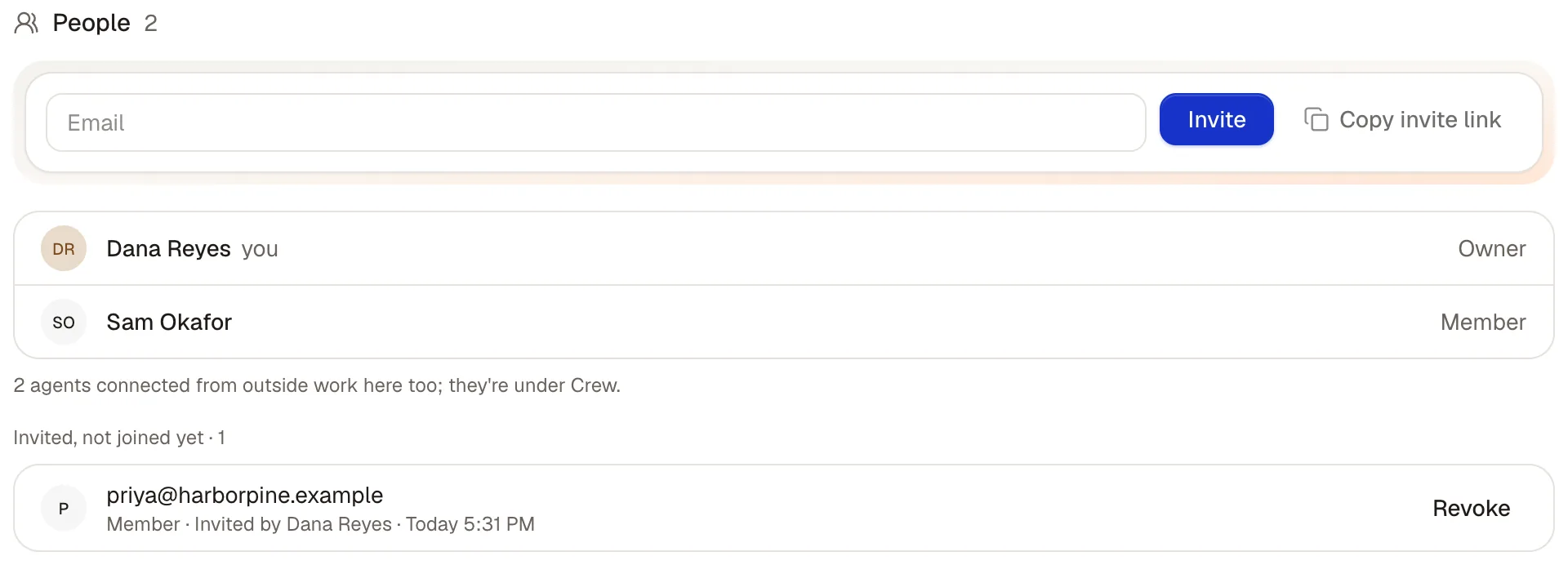
Agents connected from outside work in the workspace too, but they’re listed under Crew, not People.
Take an invitation back
Section titled “Take an invitation back”Choose Revoke beside an invitation that hasn’t been accepted. It’s gone at once.